Agent Analytics AgentAnalytics Agent-ready analytics
Desktop Beta

Live Monitor for macOS

A desktop live traffic monitor for Agent Analytics. Watch active visitors on a world map, inspect recent events, and use it as a lightweight debugging screen while you ship.
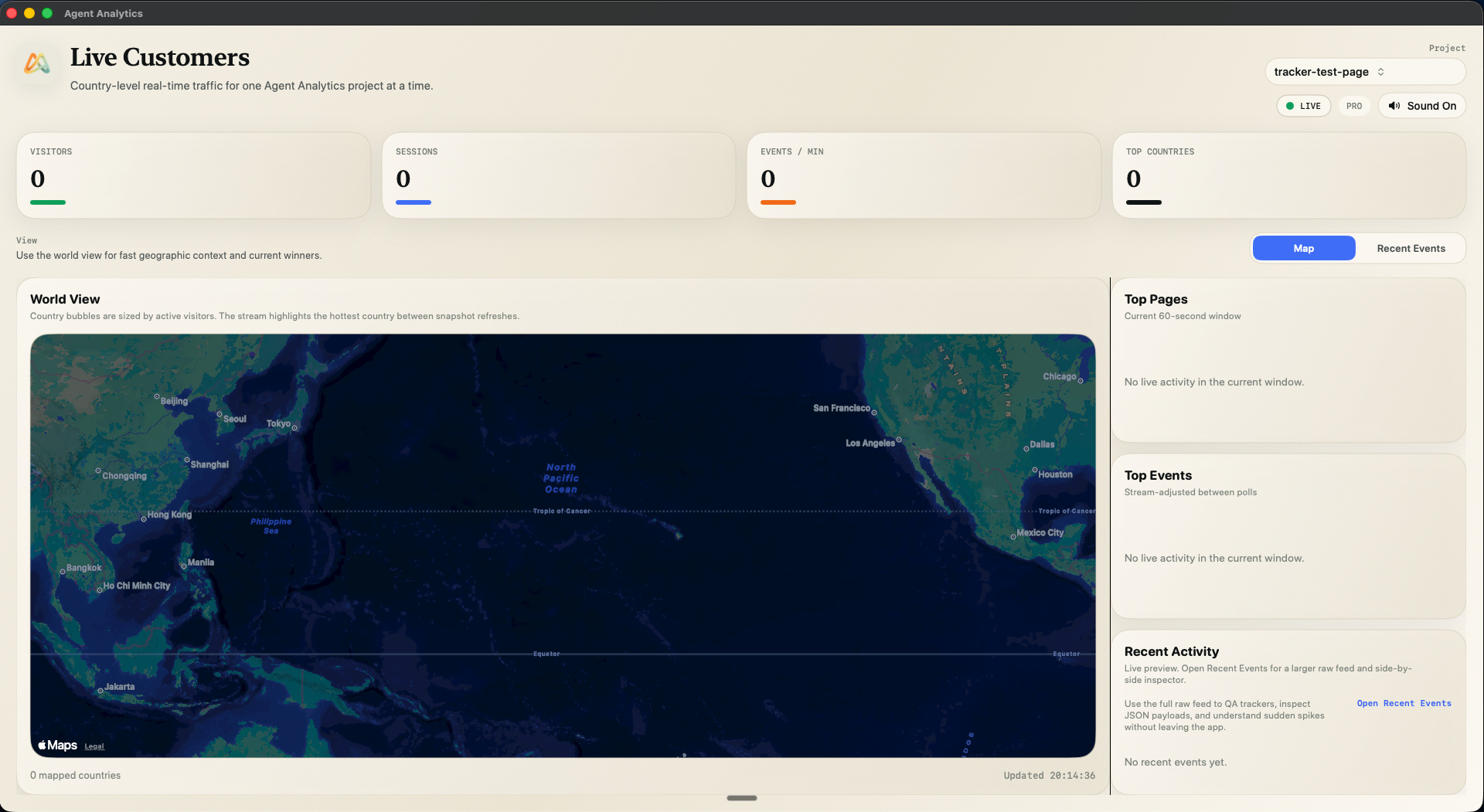
Screenshot of the Agent Analytics Live Monitor app showing the world map view and live traffic panels

Current build: unsigned macOS desktop beta, delivered as a ZIP that contains the DMG installer. After you click download, this page jumps to the install steps below, including the macOS Open Anyway flow in Privacy & Security.
How To Install

Use the macOS Open Anyway path so the app actually launches

After the ZIP finishes downloading, unzip it, double-click the DMG, drag the app into Applications, and then follow this exact Gatekeeper flow. The important part is to click Done on the first warning, then go to System Settings > Privacy & Security and choose Open Anyway.

If you skip the first launch attempt, macOS will not show the Open Anyway button yet.
01

Unzip the ZIP and open the DMG

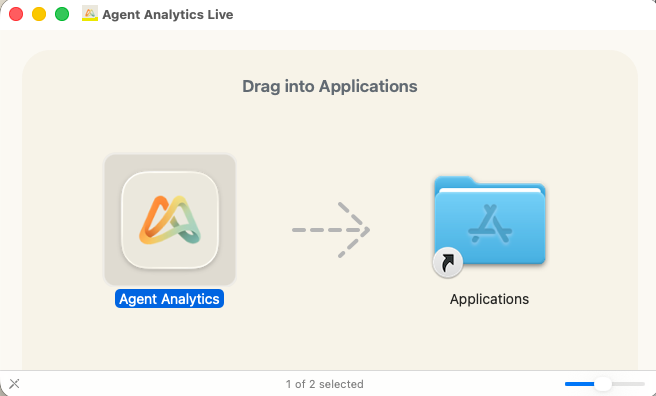
Open the downloaded ZIP, double-click the Agent Analytics Live.dmg, then drag Agent Analytics into your Applications folder from the installer window before the first launch.

The Agent Analytics DMG window showing the app being dragged into the Applications folder
Installer window: drag Agent Analytics into Applications, then launch it from there.
02

Try opening the app once

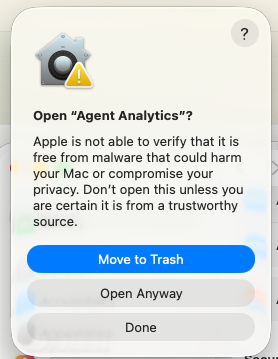
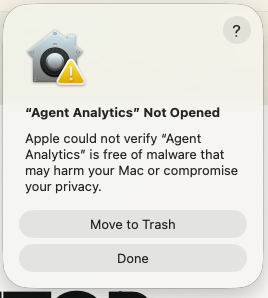
Launch Agent Analytics from Applications. When the "Agent Analytics" Not Opened warning appears, click Done. Do not move it to the trash.

The first macOS warning for "Agent Analytics" with the Done button visible
First prompt: click Done so macOS records the block and exposes the next override step.
03

Go to Privacy & Security

Open System Settings, go to Privacy & Security, scroll to the Security section, and click Open Anyway beside the blocked app message.

macOS Privacy and Security settings showing Agent Analytics was blocked and the Open Anyway button
In Privacy & Security, find the blocked app notice and press Open Anyway.
04

Confirm the second prompt

macOS will show a second confirmation dialog. Click Open Anyway there too, then launch the app normally.

The follow-up macOS confirmation dialog showing the Open Anyway button for Agent Analytics
Second prompt: click Open Anyway one more time to allow the app to launch.